
Folders & Research Decks
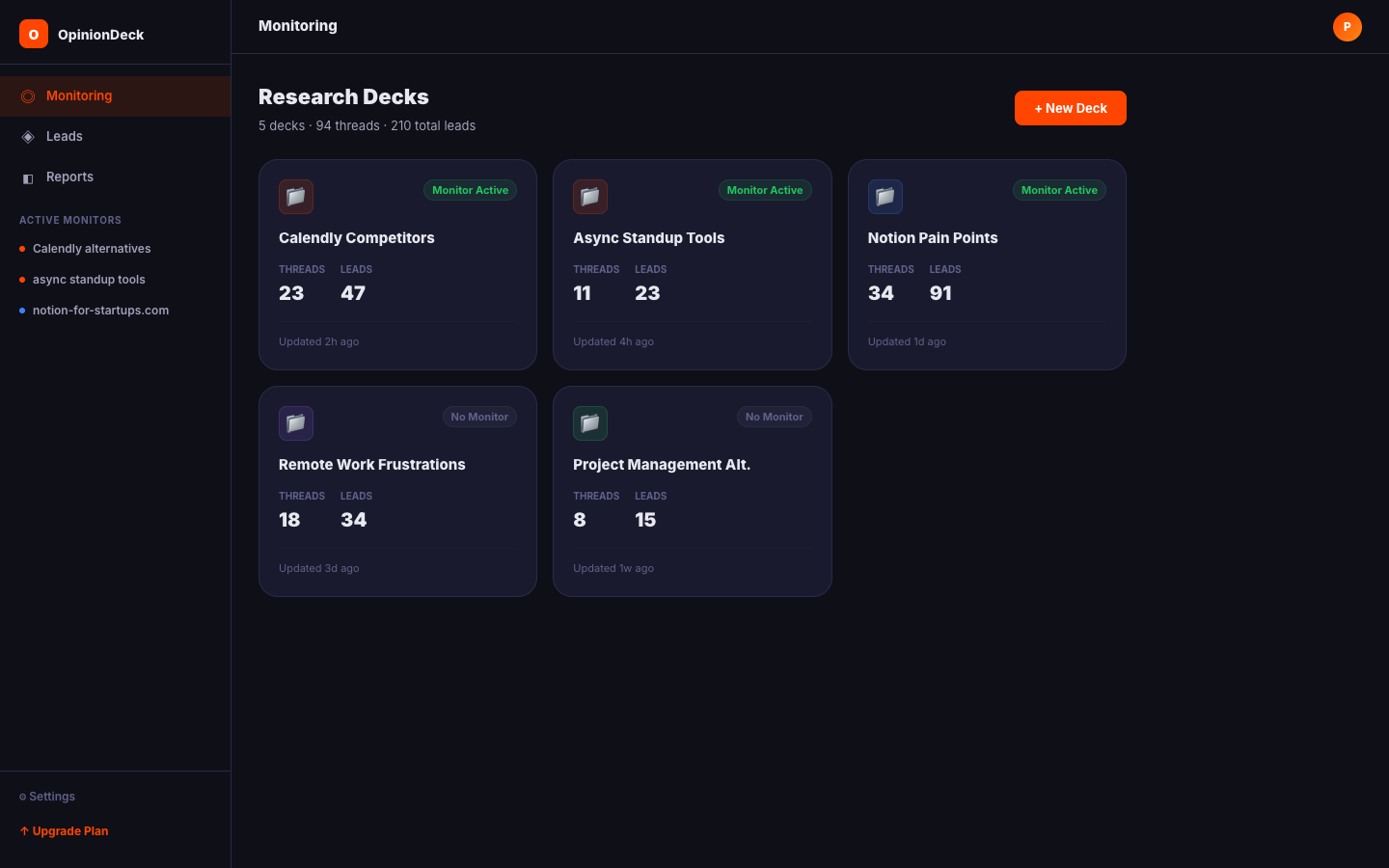
A Research Deck (also called a Folder) is OpinionDeck’s primary workspace. It’s where saved threads, AI-extracted insights, monitoring leads, and market summaries all come together.
Creating a Research Deck
From the left sidebar, click New Deck (or the + icon).
Give it a name that reflects the research focus:
Notion Competitor ResearchRemote Work Tools MarketCalendly Pain Points
Deck tabs
Each Research Deck has six tabs:
Inbox
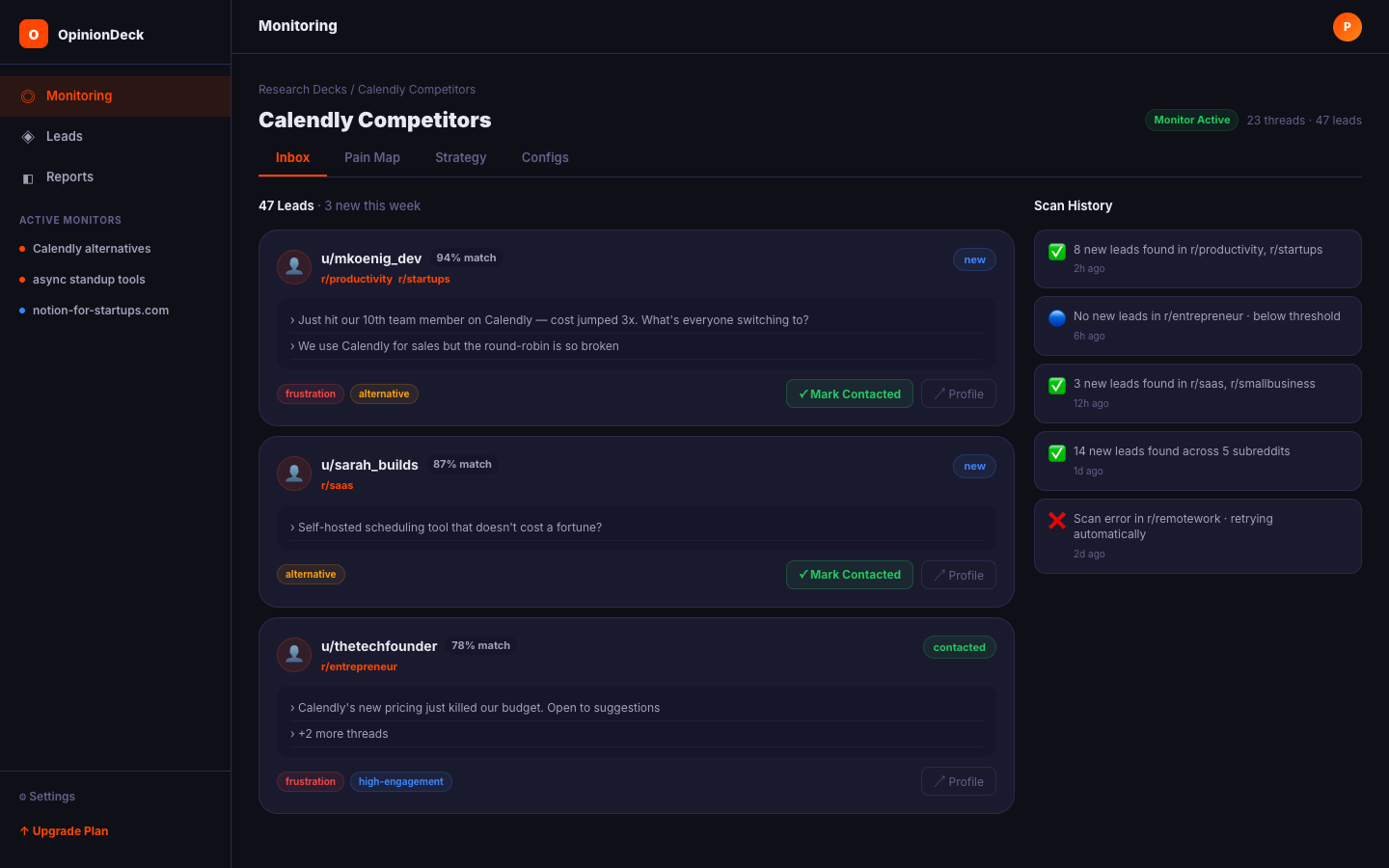
The Inbox tab is the live feed of your Deck’s monitoring activity.
- Alerts timeline — Every scan run generates an alert: how many new leads were found, which subreddit was scanned, and the timestamp.
- Leads list — All high-intent posts discovered by your monitors. Each lead shows title, author, relevance score, and status.
- Status tracking — Mark leads as
new,contacted, orignoreddirectly from the feed.
Pain Map
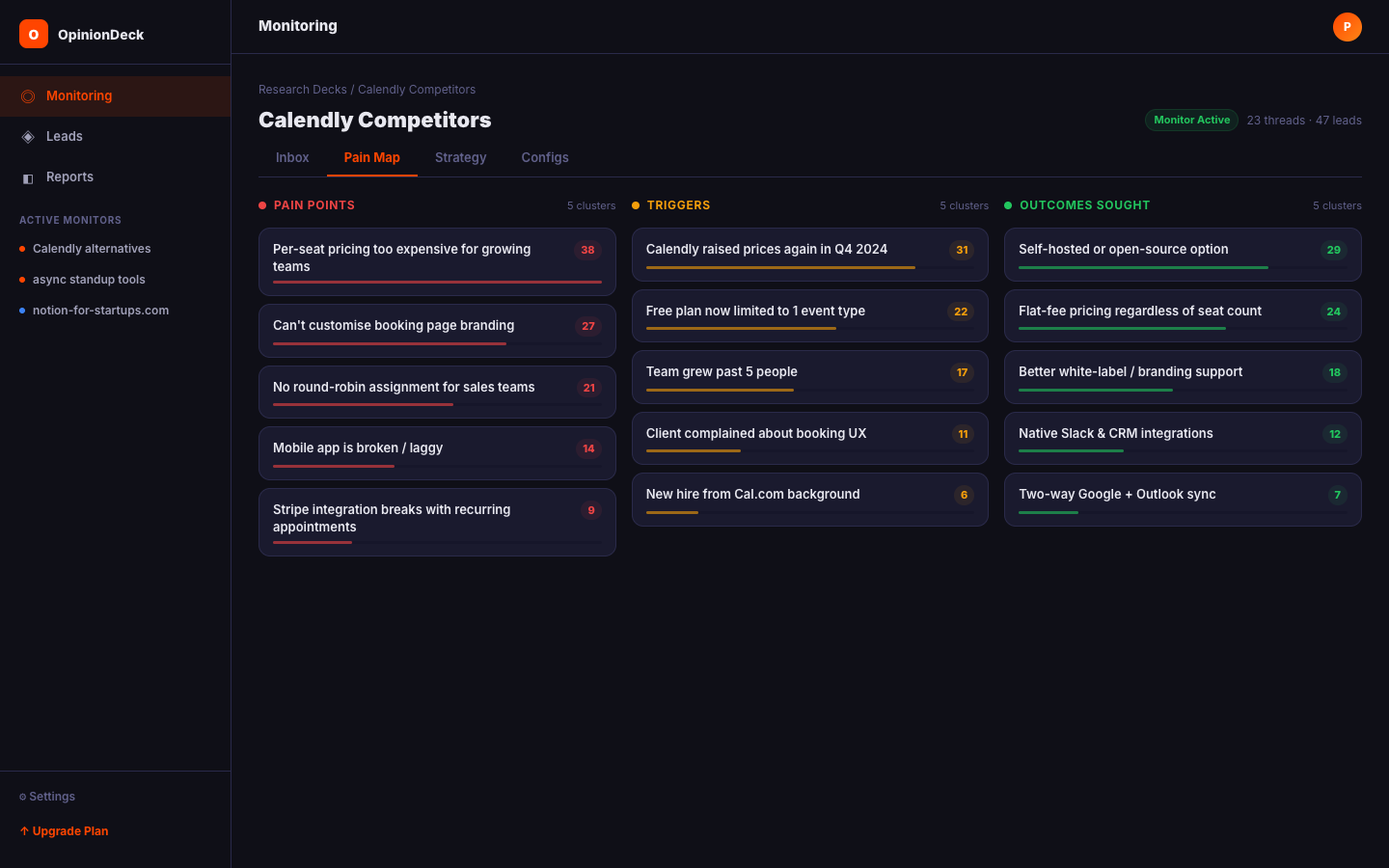
The Pain Map tab surfaces the AI-extracted insights from all threads saved to this Deck.
Three insight categories:
| Category | Description | Example |
|---|---|---|
| Pain Points | Specific problems users describe | ”Can’t bulk export notes to PDF” |
| Switch Triggers | Events that caused them to look for alternatives | ”Our team grew past the free tier limit” |
| Desired Outcomes | What users ultimately want to achieve | ”One tool that works offline and syncs later” |
Each insight shows:
- The extracted quote or summarized problem
- The source thread
- How many times it appeared across different threads (frequency)
High-frequency pain points are the most actionable — they represent widespread, validated problems.
Strategy
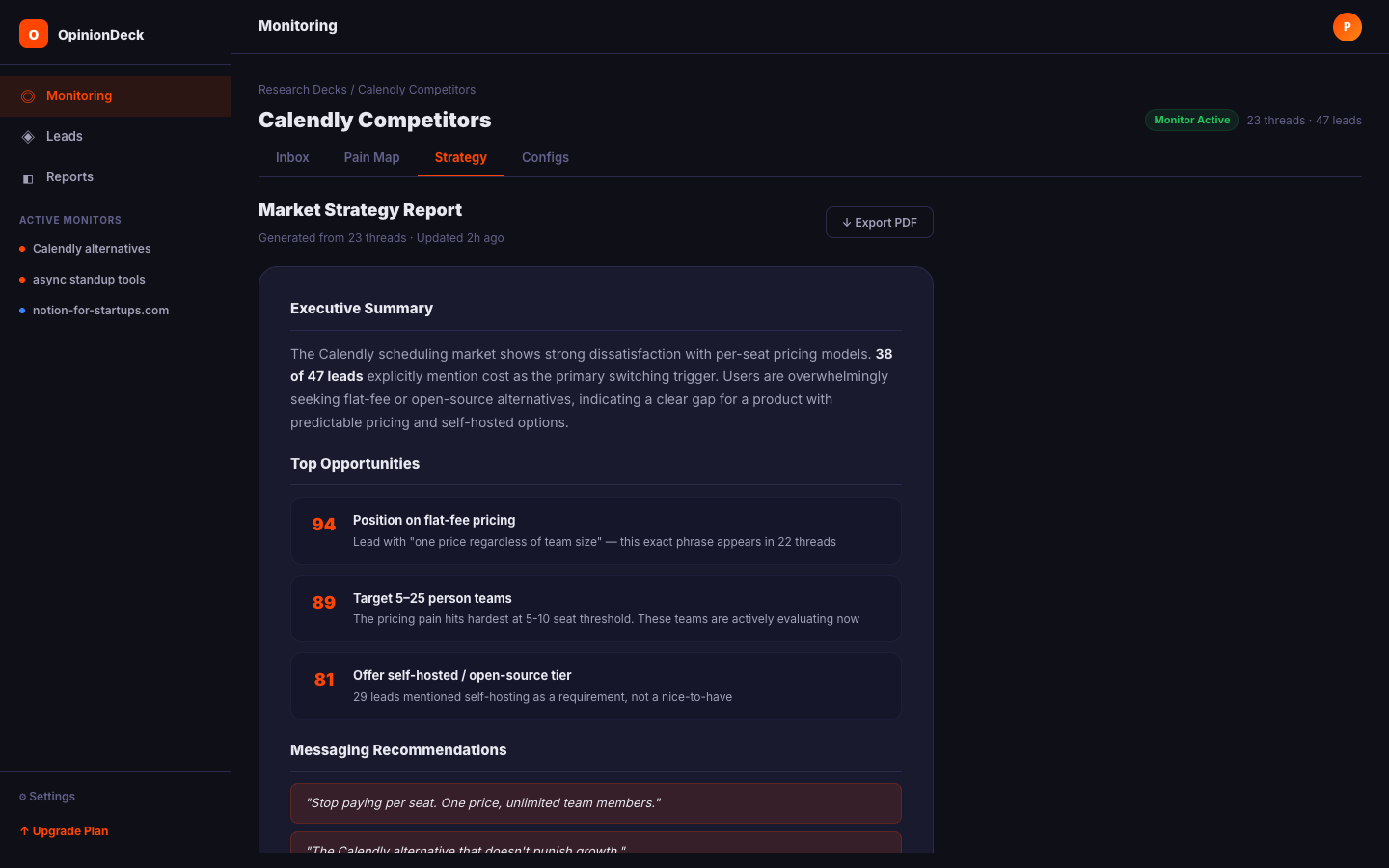
The Strategy tab contains the AI-generated market summary for this Deck.
It includes:
- Executive summary — A 3–5 sentence overview of what the market research revealed
- Top pain points — The highest-frequency problems, ranked
- Competitor weaknesses — Specific gaps mentioned in competitor threads
- Opportunity signals — Underserved niches or features repeatedly requested
- Tactical recommendations — Suggested positioning, messaging angles, or product priorities based on the data
The strategy report is regenerated each time you add new threads or run analysis.
Configs
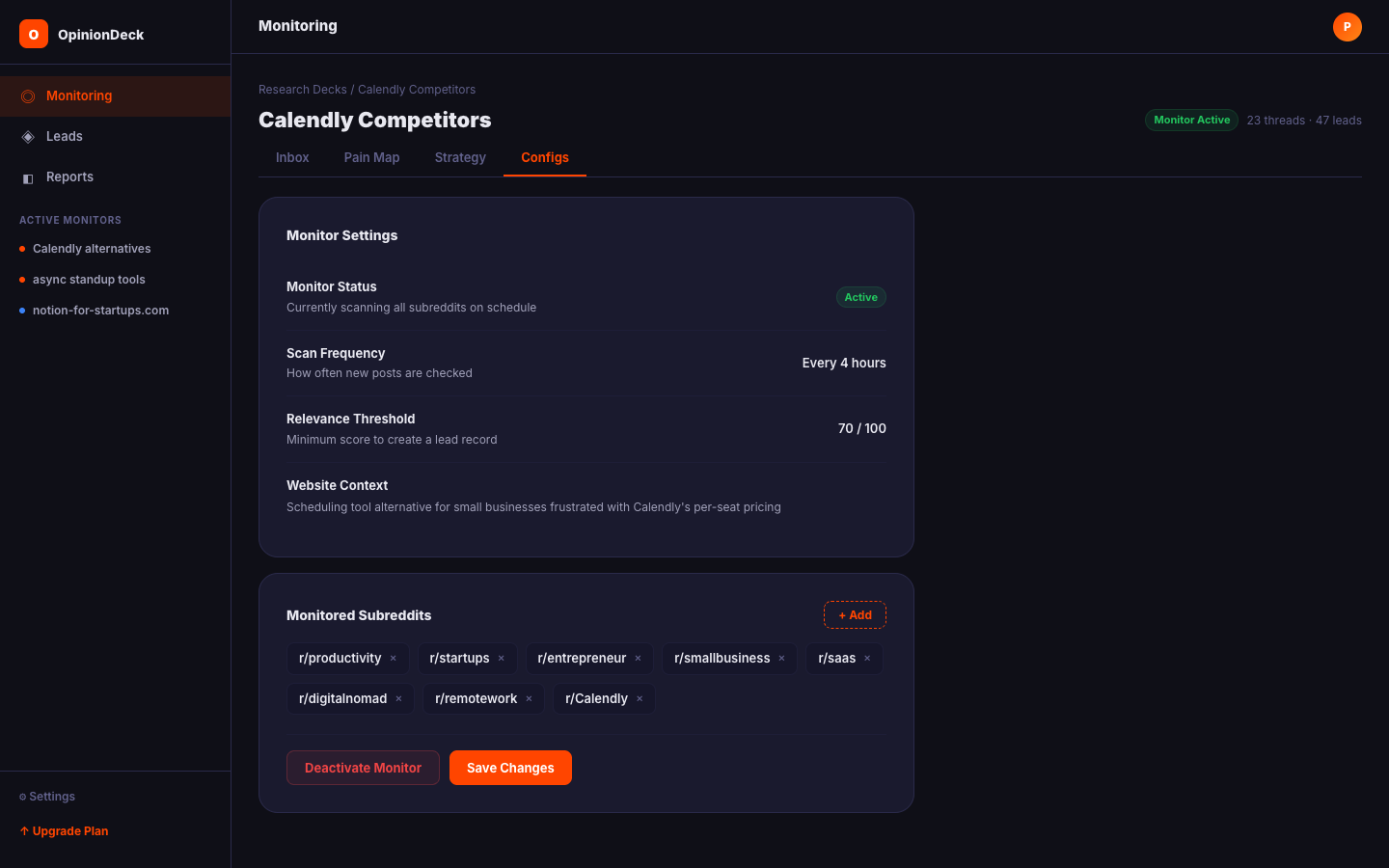
The Configs tab is where you manage the Deck’s settings and monitoring configuration.
Monitor settings:
- View which subreddits are being monitored
- Add or remove subreddits
- Update the website context
- Deactivate or re-activate the monitor
Deck metadata:
- Rename the Deck
- View thread count and analysis status
- Export options (PDF or JSON report)
Market Map
The Market Map tab visualises the patterns from your Pain Map — grouping related pain points and threads by topic. It’s useful for spotting concentrations of demand (e.g. “pricing frustration” appearing across 12 threads in 3 subreddits). No action is needed — the map updates automatically as new threads are analysed.
Opportunities
The Opportunities tab surfaces the highest-scoring leads from your monitors in a simplified view, filtered to only show posts with strong intent signals (score > 80). It’s a faster alternative to the full Inbox when you want only the top-priority items without the scan history timeline.
Saved threads
Every thread saved to a Deck appears in the thread list. For each thread you can see:
- Title and source URL
- Sync status (
pending,synced,error) - Analysis status (
queued,processing,complete) - Number of comments downloaded
- Extracted insight counts
OpinionDeck downloads the full comment tree (up to your plan’s depth limit) and stores it for analysis. You can re-trigger analysis on any thread if you’ve upgraded your plan and want deeper analysis.
Analysis status
| Status | Meaning |
|---|---|
queued | Thread is waiting to be processed |
processing | AI is currently extracting insights |
complete | Analysis finished; insights are available in Pain Map |
failed | Analysis encountered an error; you can retry |
Analysis runs in a background queue. Most threads complete within 30–90 seconds.
Deck limits by plan
| Plan | Saved threads | Analysis reports |
|---|---|---|
| Free | 5 | 1/month |
| Trial | 5 | 1/month |
| Pro | 500 | 10/month |
| Max | Unlimited | Unlimited |
Deleting a Deck
Deleting a Deck permanently removes all saved threads, leads, patterns, and alerts associated with it. This action cannot be undone.
To delete: open the Deck, go to Configs, scroll to the bottom, and click Delete Deck.